JavaScript/jQuery Diagram - Diagram Tools
The DevExtreme Diagram ships with configurable tool panels and menus. The following image highlights these visual elements:
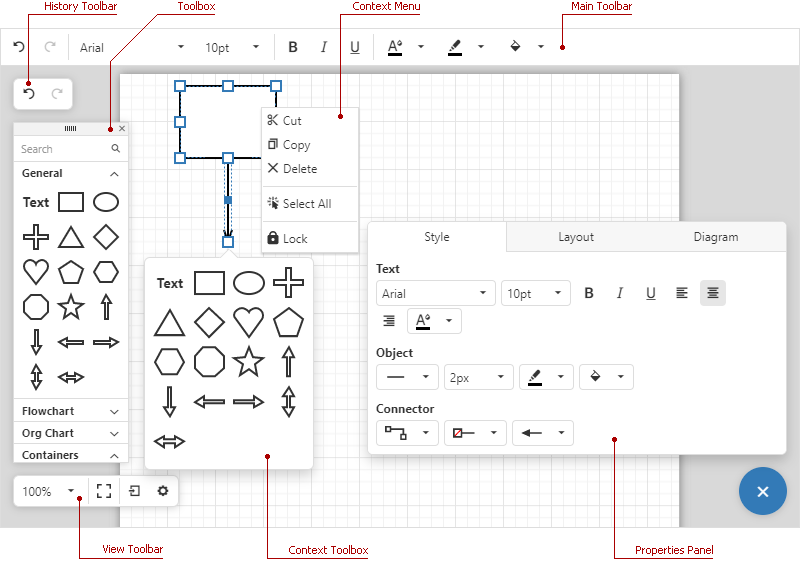
To configure Diagram tools, implement the following properties:
jQuery
To specify which commands a tool panel or menu displays, define the element's commands[] array (for instance, mainToolbar.commands[]). To add predefined commands, you can specify a string value within commands[] arrays:
$("#diagram").dxDiagram({
    mainToolbar: {
        commands: [ 'undo', 'redo', 'fontName', 'fontSize', 'bold', 'italic', 'underline' ],
    },
})
Angular
To specify which commands a tool panel or menu displays, define the element's commands[] array (for instance, mainToolbar.commands[]). To add predefined commands, specify only the name property:
<dx-diagram>
    <dxo-diagram-main-toolbar [visible]="true">
        <dxi-diagram-command name="undo"></dxi-diagram-command>
        <dxi-diagram-command name="redo"></dxi-diagram-command>
        <dxi-diagram-command name="fontName"></dxi-diagram-command>
        <dxi-diagram-command name="fontSize"></dxi-diagram-command>
        <dxi-diagram-command name="bold"></dxi-diagram-command>
        <dxi-diagram-command name="italic"></dxi-diagram-command>
        <dxi-diagram-command name="underline"></dxi-diagram-command>
    </dxo-diagram-main-toolbar>
</dx-diagram>
Vue
To specify which commands a tool panel or menu displays, define the element's commands[] array (for instance, mainToolbar.commands[]). To add predefined commands, specify only the name property:
<template>
    <DxDiagram>
        <DxMainToolbar :visible="true">
            <DxCommand name="undo" />
            <DxCommand name="redo" />
            <DxCommand name="fontName" />
            <DxCommand name="fontSize" />
            <DxCommand name="bold" />
            <DxCommand name="italic" />
            <DxCommand name="underline" />
        </DxMainToolbar>
    </DxDiagram>
</template>

<script setup lang="ts">
import { DxDiagram, DxMainToolbar, DxCommand } from 'devextreme-vue/diagram';

</script>
React
To specify which commands a tool panel or menu displays, define the element's commands[] array (for instance, mainToolbar.commands[]). To add predefined commands, specify only the name property:
import { Diagram, MainToolbar, Command } from 'devextreme-react/diagram';

function App() {
    return (
        <Diagram>
            <MainToolbar visible={true}>
                <Command name="undo" />
                <Command name="redo" />
                <Command name="fontName" />
                <Command name="fontSize" />
                <Command name="bold" />
                <Command name="italic" />
                <Command name="underline" />
            </MainToolbar>
        </Diagram>
    )
}
The Diagram component supports custom commands within tool panels and menus. To define a custom command item, specify a string command.name value (different from Command type values) and implement the onCustomCommand handler. You can also specify custom command icons and text. The following code snippet demonstrates a custom command that imports an empty value into the Diagram to clear component content:
jQuery
$("#diagram").dxDiagram({
    mainToolbar: {
        commands: [{
            name: 'clear',
            icon: 'deletetable'
        }, ... ],
    },
    onCustomCommand(e) {
        if(e.name === 'clear') {
            e.component.import('');
        }
    },
})
Angular
<dx-diagram (onCustomCommand)="handleCustomCommand($event)">
    <dxo-diagram-main-toolbar [visible]="true">
        <dxi-diagram-command
            name="clear"
            icon="deletetable"
        ></dxi-diagram-command>
    </dxo-diagram-main-toolbar>
</dx-diagram>
import { DxDiagramComponent, type DxDiagramTypes } from 'devextreme-angular/ui/diagram';
// ...
export class AppComponent {
    handleCustomCommand(e: DxDiagramTypes.CustomCommandEvent) {
        if(e.name === 'clear') {
            e.component.import('');
        }
    }
}
Vue
<template>
    <DxDiagram @custom-command="handleCustomCommand">
        <DxMainToolbar :visible="true">
            <DxCommand
                name="clear"
                icon="deletetable"
            />
        </DxMainToolbar>
    </DxDiagram>
</template>

<script setup lang="ts">
import { DxDiagram, DxMainToolbar, DxCommand, type DxDiagramTypes } from 'devextreme-vue/diagram'

function handleCustomCommand(e: DxDiagramTypes.CustomCommandEvent) {
    if(e.name === 'clear') {
        e.component.import('');
    }
}
</script>
React
import { Diagram, MainToolbar, Command, type DiagramTypes } from 'devextreme-react/diagram';

function handleCustomCommand(e: DiagramTypes.CustomCommandEvent) {
    if(e.name === 'clear') {
        e.component.import('');
    }
}

function App() {
    return (
        <Diagram onCustomCommand={handleCustomCommand}>
            <MainToolbar visible={true}>
                <Command
                    name="clear"
                    icon="deletetable"
                />
            </MainToolbar>
        </Diagram>
    )
}
ASP.NET Core Controls
  @(Html.DevExtreme().Diagram()
        .ID("diagram")
        .ContextMenu(cm => cm
              .Enabled(true)
              .Commands(new[] {
                    DiagramCommand.BringToFront,
                    DiagramCommand.SendToBack,
                    DiagramCommand.Lock,
                    DiagramCommand.Unlock
              })
        )
        .ContextToolbox(ct => ct
              .Enabled(true)
              .Category(DiagramShapeCategory.Flowchart)
              .ShapeIconsPerRow(5)
              .Width(200)
        )
        .PropertiesPanel(pp => pp
              .Visibility(DiagramPanelVisibility.Visible)
              .Tabs(t => {
                    t.Add()
                    .Groups(g => {
                          g.Add()
                                .Title("Page Properties")
                                .Commands(new[] { DiagramCommand.PageSize, DiagramCommand.PageOrientation,
                                      DiagramCommand.PageColor });
                    });
              })
        )
        .HistoryToolbar(tb => tb
              .Visible(false)
        )
        .ViewToolbar(tb => tb
              .Visible(true)
              .Commands(cmds => {
                    cmds.Add().Name(DiagramCommand.ZoomLevel);
                    cmds.Add().Name(DiagramCommand.FullScreen);
                    cmds.Add().Name(DiagramCommand.Units);
                    cmds.Add().Name("sayHello").Text("Say Hello").Icon("blockquote");
                    cmds.Add().Name("export").Icon("export").Items(items => {
                          items.Add().Name(DiagramCommand.ExportSvg);
                          items.Add().Name(DiagramCommand.ExportPng);
                          items.Add().Name(DiagramCommand.ExportJpg);
                    });
              })
        )
        .MainToolbar(tb => tb
              .Visible(true)
              .Commands(cmds => {
                    cmds.Add().Name(DiagramCommand.Undo);
                    cmds.Add().Name(DiagramCommand.Redo);
                    cmds.Add().Name(DiagramCommand.Separator);
                    cmds.Add().Name(DiagramCommand.FontName);
                    cmds.Add().Name(DiagramCommand.FontSize);
                    cmds.Add().Name(DiagramCommand.Separator);
                    cmds.Add().Name(DiagramCommand.Bold);
                    cmds.Add().Name(DiagramCommand.Italic);
                    cmds.Add().Name(DiagramCommand.Underline);
                    cmds.Add().Name(DiagramCommand.Separator);
                    cmds.Add().Name(DiagramCommand.FontColor);
                    cmds.Add().Name(DiagramCommand.LineColor);
                    cmds.Add().Name(DiagramCommand.FillColor);
                    cmds.Add().Name(DiagramCommand.Separator);
                    cmds.Add().Name("clear").Text("Clear Diagram").Icon("clearsquare");
              })
        )
        .Toolbox(tb => tb
              .Visibility(DiagramPanelVisibility.Visible)
              .Groups(g => {
                    g.Add().Category(DiagramShapeCategory.General).Title("General");
                    g.Add().Category(DiagramShapeCategory.Flowchart).Title("Flowchart").Expanded(true);
              })
              .ShowSearch(false)
              .ShapeIconsPerRow(4)
              .Width(220)
        )
        .OnCustomCommand(@<text>
              function(e) {
                    if(e.name === "clear") {
                          var result = DevExpress.ui.dialog.confirm("Are you sure you want to clear the diagram?
                                This action cannot be undone.", "Warning");
                          result.done(
                                function(dialogResult) {
                                      if(dialogResult) {
                                            e.component.import("");
                                      }
                                }
                          );
                    }
              else if (e.name == "sayHello")
                    alert("Hello!")
              }
        </text>)
  )
ASP.NET MVC Controls
  @(Html.DevExtreme().Diagram()
        .ID("diagram")
        .ContextMenu(cm => cm
              .Enabled(true)
              .Commands(new[] {
                    DiagramCommand.BringToFront,
                    DiagramCommand.SendToBack,
                    DiagramCommand.Lock,
                    DiagramCommand.Unlock
              })
        )
        .ContextToolbox(ct => ct
              .Enabled(true)
              .Category(DiagramShapeCategory.Flowchart)
              .ShapeIconsPerRow(5)
              .Width(200)
        )
        .PropertiesPanel(pp => pp
              .Visibility(DiagramPanelVisibility.Visible)
              .Tabs(t => {
                    t.Add()
                    .Groups(g => {
                          g.Add()
                                .Title("Page Properties")
                                .Commands(new[] { DiagramCommand.PageSize, DiagramCommand.PageOrientation,
                                      DiagramCommand.PageColor });
                    });
              })
        )
        .HistoryToolbar(tb => tb
              .Visible(false)
        )
        .ViewToolbar(tb => tb
              .Visible(true)
              .Commands(cmds => {
                    cmds.Add().Name(DiagramCommand.ZoomLevel);
                    cmds.Add().Name(DiagramCommand.FullScreen);
                    cmds.Add().Name(DiagramCommand.Units);
                    cmds.Add().Name("sayHello").Text("Say Hello").Icon("blockquote");
                    cmds.Add().Name("export").Icon("export").Items(items => {
                          items.Add().Name(DiagramCommand.ExportSvg);
                          items.Add().Name(DiagramCommand.ExportPng);
                          items.Add().Name(DiagramCommand.ExportJpg);
                    });
              })
        )
        .MainToolbar(tb => tb
              .Visible(true)
              .Commands(cmds => {
                    cmds.Add().Name(DiagramCommand.Undo);
                    cmds.Add().Name(DiagramCommand.Redo);
                    cmds.Add().Name(DiagramCommand.Separator);
                    cmds.Add().Name(DiagramCommand.FontName);
                    cmds.Add().Name(DiagramCommand.FontSize);
                    cmds.Add().Name(DiagramCommand.Separator);
                    cmds.Add().Name(DiagramCommand.Bold);
                    cmds.Add().Name(DiagramCommand.Italic);
                    cmds.Add().Name(DiagramCommand.Underline);
                    cmds.Add().Name(DiagramCommand.Separator);
                    cmds.Add().Name(DiagramCommand.FontColor);
                    cmds.Add().Name(DiagramCommand.LineColor);
                    cmds.Add().Name(DiagramCommand.FillColor);
                    cmds.Add().Name(DiagramCommand.Separator);
                    cmds.Add().Name("clear").Text("Clear Diagram").Icon("clearsquare");
              })
        )
        .Toolbox(tb => tb
              .Visibility(DiagramPanelVisibility.Visible)
              .Groups(g => {
                    g.Add().Category(DiagramShapeCategory.General).Title("General");
                    g.Add().Category(DiagramShapeCategory.Flowchart).Title("Flowchart").Expanded(true);
              })
              .ShowSearch(false)
              .ShapeIconsPerRow(4)
              .Width(220)
        )
        .OnCustomCommand(@<text>
              function(e) {
                    if(e.name === "clear") {
                          var result = DevExpress.ui.dialog.confirm("Are you sure you want to clear the diagram?
                                This action cannot be undone.", "Warning");
                          result.done(
                                function(dialogResult) {
                                      if(dialogResult) {
                                            e.component.import("");
                                      }
                                }
                          );
                    }
              else if (e.name == "sayHello")
                    alert("Hello!")
              }
        </text>)
  )