DevExtreme Vue - Fluent Next Theme Customization
Fluent Next themes build on the DevExpress Design System and support multiple customization options.
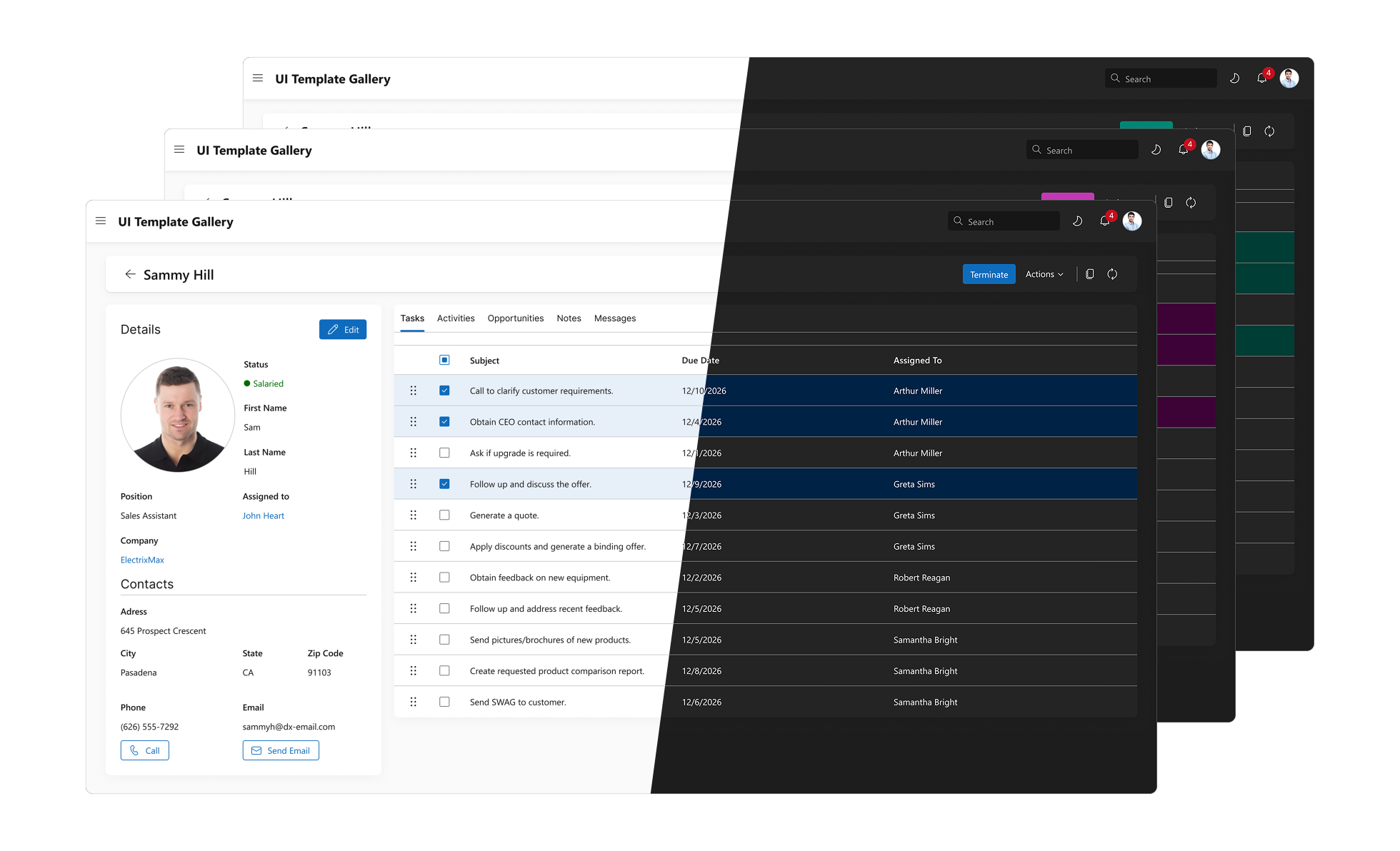
CSS Variables
Fluent Next themes ship with CSS variables defined in the DevExpress Design System. Refer to the following help topics for additional information about key styling principles and for a list of available CSS variables:
Variable Naming Convention
The following naming convention applies to CSS variables in Fluent Next themes:
--dxds-*
Design System CSS variables that serve as public APIs. Use these variables to customize your DevExtreme-powered application.--dx-*
Internal CSS variables used by DevExtreme components. Undocumented variables may change between versions. Fluent Next themes also declare legacy--dx-*variables from other DevExtreme themes (for instance,--dx-color-primaryand--dx-font-size) and map them to Design System variables. For more information, refer to the following section: Legacy Variable Migration.--dx-viz-*
CSS variables used by SVG-based components. For more information, refer to the following section: SVG-Based Component Colors.
CSS Variable Use
You can apply Design System variables to custom elements to ensure a consistent look across your application. The following example uses Design System variables for rest and hover states:
.info-card {
    /* Surface and content colors */
    background-color: var(--dxds-color-bg);
    color: var(--dxds-color-content);

    /* Spacing */
    padding: var(--dxds-spacing-240);
    margin-bottom: var(--dxds-spacing-160);

    /* Borders */
    border: var(--dxds-border-width-10) solid var(--dxds-color-border);
    border-radius: var(--dxds-border-radius-40);

    /* Typography */
    font-size: var(--dxds-font-size-base-md);
    line-height: var(--dxds-line-height-base-md);

    /* Shadow */
    box-shadow: var(--dxds-box-shadow-sm);
}

.info-card:hover {
    background-color: var(--dxds-color-bg-hovered);
    border-color: var(--dxds-color-border-hovered);
}
CSS Variable Overrides
You can override Design System variables to modify default Fluent Next styles. To override variables for an entire page, use the :root selector:
:root {
    --dxds-color-bg-primary: #b06ab3;
}Note the following when you define :root overrides:
:rootoverrides and Fluent Next stylesheets share the same specificity. Load your override stylesheet after the Fluent Next stylesheet to apply your overrides. Scoped overrides that use class or ID selectors are applied regardless of load order.Theme mode containers redeclare variables that have different values in light and dark modes (for instance,
--dxds-color-bgand--dxds-color-content-primary).:rootoverrides for these variables do not apply to elements withindx-theme-mode-*containers. To customize these variables within a theme mode container, define overrides for the container and include the mode class in the selector:CSS.sidebar.dx-theme-mode-dark { --dxds-color-bg: #1f1f1f; }
CSS variable overrides also allow you to modify DevExtreme component styles. You can define overrides for individual components or for a container that wraps multiple components. These overrides allow you to apply unique styles to different parts of your application. The following code snippet overrides semantic variables:
/* Using dxds variables */
.custom-colors-var {
    --dxds-color-bg: var(--dxds-color-bg-inverted);
    --dxds-color-content: var(--dxds-color-content-inverted);
    --dxds-color-border: var(--dxds-color-border-inverted);
}

/* Using custom colors */
.custom-colors-hex {
    --dxds-color-bg: #341A51;
    --dxds-color-content: #F5F0FA;
    --dxds-color-border: #532982;
}
Components that display content in overlays do not apply styles from the component element to overlay content. Use one of the following approaches to style overlay content:
Use a
.dx-swatch-*Component Container
If you initialize an overlay component in a container with adx-swatch-*class, DevExtreme nests the component's overlay wrapper in a container with the samedx-swatch-*class. Use this class in your override definitions to style the overlay content.jQuery
index.htmlindex.js<html> <!-- ... --> <body class="dx-viewport"> <div class="dx-swatch-myswatch"> <div id="popup"></div> <!-- Styles defined for .dx-swatch-myswatch will apply to the Popup content --> </div> </body> </html>$('#popup').dxPopup({ // ... });Angular
app.component.htmlapp.component.ts<div class="dx-swatch-myswatch"> <dx-popup></dx-popup> <!-- Styles defined for .dx-swatch-myswatch will apply to the Popup content --> </div>import { Component } from '@angular/core'; import { DxPopupModule } from 'devextreme-angular'; @Component({ selector: 'app-root', templateUrl: './app.component.html', imports: [DxPopupModule, /* ... */], }) export class AppComponent { // ... }Vue
App.vue<template> <div class="dx-swatch-myswatch"> <DxPopup /> <!-- Styles defined for .dx-swatch-myswatch will apply to the Popup content --> </div> </template> <script setup lang="ts"> import { DxPopup } from 'devextreme-vue/popup'; </script>React
App.tsximport { Popup } from 'devextreme-react/popup'; export default function App() { return ( <div className="dx-swatch-myswatch"> <Popup /> {/* Styles defined for .dx-swatch-myswatch will apply to the Popup content */} </div> ); }Note that DevExtreme does not generate
.dx-swatch-*wrapper containers for components if you define their container property.Use wrapperAttr Properties
You can define the following properties to add selector attributes to overlay wrappers:- wrapperAttr: Specify this property in overlay components (Popup, Popover, Toast, LoadPanel).
- dropDownOptions.wrapperAttr: Specify this property in editors that display drop-downs (SelectBox, Lookup, DateBox, ColorBox, DropDownBox, DropDownButton, Autocomplete).
jQuery
index.js$("#popup").dxPopup({ wrapperAttr: { class: "custom-colors-hex", }, }); $("#selectBox").dxSelectBox({ dropDownOptions: { wrapperAttr: { class: "custom-colors-hex", }, }, });Angular
app.component.htmlapp.component.ts<dx-popup [wrapperAttr]="wrapperAttr" ></dx-popup> <dx-select-box> <dxo-select-box-drop-down-options [wrapperAttr]="wrapperAttr" ></dxo-select-box-drop-down-options> </dx-select-box>import { Component } from '@angular/core'; import { DxPopupModule, DxSelectBoxModule } from 'devextreme-angular'; @Component({ selector: 'app-root', templateUrl: './app.component.html', imports: [DxPopupModule, DxSelectBoxModule, /* ... */], }) export class AppComponent { wrapperAttr = { class: 'custom-colors-hex', }; }Vue
App.vue<template> <DxPopup :wrapper-attr="wrapperAttr" /> <DxSelectBox> <DxDropDownOptions :wrapper-attr="wrapperAttr" /> </DxSelectBox> </template> <script setup lang="ts"> import { DxPopup } from 'devextreme-vue/popup'; import { DxSelectBox, DxDropDownOptions } from 'devextreme-vue/select-box'; const wrapperAttr = { class: 'custom-colors-hex', }; </script>React
App.tsximport { Popup } from 'devextreme-react/popup'; import { SelectBox, DropDownOptions } from 'devextreme-react/select-box'; const wrapperAttr = { class: 'custom-colors-hex', }; export default function App() { return ( <> <Popup wrapperAttr={wrapperAttr} /> <SelectBox> <DropDownOptions wrapperAttr={wrapperAttr} /> </SelectBox> </> ); }
You can also use CSS variable overrides to apply custom or utility palette colors to specific parts of your application:
/* Utility palette colors */
.yellow-utility {
    --dxds-color-bg: var(--dxds-color-bg-yellow-subtle);
    --dxds-color-border: var(--dxds-color-border-yellow);
}

/* Custom colors */
.yellow-custom {
    --dxds-color-bg: #F2C661;
    --dxds-color-content: #3F2900;
    --dxds-color-border: #EDAD1C;
}
SVG-Based Component Colors
SVG-based components (such as charts and gauges) use --dx-viz-* CSS variables in Fluent Next themes to paint elements. These themes ship with the Fluent Next palette, which defines the following color sets:
| Color Set | CSS Variables |
|---|---|
| simpleSet |
|
| indicatingSet |
|
| gradientSet |
|
Accent colors in Fluent Next themes only apply to HTML-based components and to the following RangeSelector elements:
- Selected range
- Slider handles
- Slider markers
You can override palette variables to change colors in all SVG-based components:
:root {
    --dx-viz-blue: #0063b1;
    --dx-viz-red: #d13438;
}
Load your override stylesheet after the Fluent Next stylesheet. Palette variables apply to all Fluent Next variations (light and dark modes, standard and compact sizes), so :root overrides also apply to components in theme mode containers. SVG-based components apply CSS variable changes immediately, and you do not need to call refreshTheme().
--dx-viz-* color overrides also apply to palette extensions. An SVG-based component automatically extends the applied palette based on an extension mode when the component needs more colors than the palette contains. The generateColors(palette, count, options) utility method also uses color overrides.
Methods that return colors (for instance, a Chart point's getColor()) return resolved colors used to render elements. These methods return opaque colors in hexadecimal format and colors with transparency in rgba() format.
Legacy Variable Migration
DevExtreme themes other than Fluent Next use internal --dx-* variables instead of Design System variables to define shared CSS values such as colors. To support migration from these themes, Fluent Next themes declare these--dx-* variables and map them to Design System variables. This section lists mapped variables and corresponding public --dxds-* variables that you should migrate to.
The following table lists color variables. Fluent Next themes declare these variables in the :root scope and on elements that use container-specific theme modes:
| Legacy Variable | Design System Variable |
|---|---|
--dx-color-primary |
--dxds-color-content-primary |
--dx-color-link |
--dxds-color-content-primary |
--dx-color-success |
--dxds-color-content-success |
--dx-color-warning |
--dxds-color-content-warning |
--dx-color-danger |
--dxds-color-content-danger |
--dx-color-text |
--dxds-color-content |
--dx-color-icon |
--dxds-color-content-subtle |
--dx-color-spin-icon |
--dxds-color-content-subtle |
--dx-texteditor-color-label |
--dxds-color-content-subtle |
--dx-color-main-bg |
--dxds-color-bg-canvas |
--dx-component-color-bg |
--dxds-color-bg |
--dx-datagrid-row-alternation-bg |
--dxds-color-bg-low |
--dx-color-options-panel-bg |
--dxds-color-bg-inverted with --dxds-opacity-5 opacity |
--dx-color-border |
--dxds-color-border |
--dx-color-separator |
--dxds-color-border-subtle |
The following table lists size variables for standard and compact sizes. Fluent Next themes declare these variables in the :root scope:
| Legacy Variable | Design System Variable (Standard Size) | Design System Variable (Compact Size) |
|---|---|---|
--dx-font-size |
--dxds-font-size-base-md |
--dxds-font-size-base-sm |
--dx-font-size-xs |
--dxds-font-size-120 |
--dxds-font-size-120 |
--dx-font-size-sm |
--dxds-font-size-180 |
--dxds-font-size-140 |
--dx-font-size-md |
--dxds-font-size-200 |
--dxds-font-size-160 |
--dx-font-size-lg |
--dxds-font-size-280 |
--dxds-font-size-200 |
--dx-font-size-xl |
--dxds-spacing-340 (34px, not included in the font size scale) |
--dxds-font-size-240 |
--dx-font-size-heading-1 |
--dxds-font-size-headline-xl |
--dxds-font-size-headline-lg |
--dx-font-size-heading-2 |
--dxds-font-size-headline-lg |
--dxds-font-size-headline-md |
--dx-font-size-heading-3 |
--dxds-font-size-headline-md |
--dxds-font-size-headline-sm |
--dx-font-size-heading-4 |
--dxds-font-size-headline-sm |
--dxds-font-size-title-md |
--dx-font-size-heading-5 |
--dxds-font-size-title-md |
--dxds-font-size-title-sm |
--dx-font-size-heading-6 |
--dxds-font-size-title-sm |
--dxds-font-size-title-xs |
--dx-font-size-icon |
--dxds-spacing-200 |
--dxds-spacing-160 |
--dx-component-height |
--dxds-spacing-320 |
--dxds-spacing-240 |
--dx-toolbar-height |
--dxds-spacing-480 |
--dxds-spacing-360 |
--dx-list-item-padding-block |
--dxds-spacing-60 |
--dxds-spacing-40 |
--dx-list-item-padding-inline |
--dxds-spacing-120 |
--dxds-spacing-80 |
--dx-border-radius |
--dxds-border-radius-40 |
--dxds-border-radius-40 |
--dx-border-width |
--dxds-border-width-10 |
--dxds-border-width-10 |
The following table lists legacy variables that Fluent Next themes do not declare in the :root scope. Replace these variables with the corresponding Design System variables:
| Legacy Variable | Design System Variable |
|---|---|
--dx-color-shadow |
--dxds-box-shadow-* (these variables define complete box-shadow values instead of only shadow colors) |
--dx-texteditor-color-text |
--dxds-color-content |
--dx-popup-toolbar-item-padding-inline |
--dxds-spacing-80 |
--dx-button-padding-inline |
--dxds-spacing-120 (standard size) or --dxds-spacing-80 (compact size) |
--dx-button-padding-inline for elements with the dx-button or dx-dropdowneditor-button class.Accent Colors
This section describes accent colors in Fluent Next themes.
Accent colors only apply to HTML-based components and to the following RangeSelector elements:
- Selected range
- Slider handles
- Slider markers
Other SVG-based components use palette colors that do not depend on the accent color. Refer to the following help topic for additional information: SVG-Based Components Customization - Palettes.
Predefined Accent Colors
The DevExpress Design System defines 11 primary color palettes for Fluent themes. These color palettes ship as stylesheets in the DevExtreme npm package. Import one of these accent stylesheets after a Fluent Next theme to apply an accent color:
import 'devextreme/dist/css/dx.fluent-next.blue.light.css';
import 'devextreme/dist/css/accents/rose.css';
<link rel="stylesheet" href="node_modules/devextreme/dist/css/dx.fluent-next.blue.light.css">
<link rel="stylesheet" href="node_modules/devextreme/dist/css/accents/rose.css">
The following accent stylesheets are available:
| Accent Color | Stylesheet |
|---|---|
| Blue | accents/blue.css |
| Cool Blue | accents/cool-blue.css |
| Desert | accents/desert.css |
| Mint | accents/mint.css |
| Moss | accents/moss.css |
| Orchid | accents/orchid.css |
| Purple | accents/purple.css |
| Rose | accents/rose.css |
| Rust | accents/rust.css |
| Steel | accents/steel.css |
| Storm | accents/storm.css |
Note the following when you apply accent stylesheets:
- Blue is the default accent color in Fluent Next themes. You do not need to import the Blue accent stylesheet to apply this accent color.
- Theme and accent stylesheets define colors on the same selector (
:root). To ensure accent colors take effect, load your accent stylesheet after the theme stylesheet. Custom accent colors override predefined accent colors regardless of stylesheet load order. Predefined accent stylesheets declare shades as fallback values for
--dx-accent-color-*variables:CSS/* Shade 10 of the Blue accent stylesheet */ --dxds-primary-10: var(--dx-accent-color-10, #f4f8fc);
Accent stylesheets apply to all Fluent Next variations (light and dark modes, standard and compact sizes). When you switch theme modes or sizes, you do not need to change your accent stylesheet.
Custom Accent Colors
Fluent Next stylesheets ship with a CSS rule that calculates primary shades from the --dx-accent-color variable defined in :root. Assign a color to this variable in a :root declaration block to use Fluent Next themes with a custom accent color:
:root {
    --dx-accent-color: SlateBlue;
}
You can also call the customAccentColor(color) method to change the accent color at runtime:
import { customAccentColor } from 'devextreme/ui/themes';

customAccentColor('#6b4fbb');
DevExpress.ui.themes.customAccentColor('#6b4fbb');This method defines --dx-accent-color as an inline style on the <html> element. This inline value takes priority over --dx-accent-color values in your stylesheets. To remove the custom accent color, pass null or an empty string to customAccentColor(color). Components then use the accent color from your stylesheets or the predefined accent color.
We recommend that you specify a vivid color as your custom accent to ensure your app is accessible to users with vision impairments. Use a color that has high contrast ratios with background and content colors in your chosen theme mode (light or dark). Avoid light or pastel colors, as well as grayscale colors such as white or black. Refer to the following help topic for more information about color contrast: Color Contrast - Accessibility | MDN.
Consider the following when you specify a custom accent color:
- Fluent Next stylesheets calculate primary shades only in the
:rootscope. A--dx-accent-colordeclaration on a descendant element does not affect component colors. - Fluent Next stylesheets use the oklch() CSS function to calculate primary color shades. Older browsers may not support this function and may revert to predefined accents.
Certain calculated primary shades may not contrast sufficiently with corresponding background or content colors. You can override these shades individually as follows:
CSS:root { --dx-accent-color-90: #5a4bc2; }Load the stylesheet with these overrides after your Fluent Next stylesheet to ensure they take effect.
Theme Modes
Fluent Next themes ship with light and dark theme modes. Each Fluent Next stylesheet contains styles for both modes. The stylesheet you load specifies the default mode for the page. Light and dark stylesheets are available in standard and compact sizes:
- Light:
dx.fluent-next.blue.light.cssdx.fluent-next.blue.light.compact.css
- Dark:
dx.fluent-next.blue.dark.cssdx.fluent-next.blue.dark.compact.css
You can switch the theme mode for the entire page without loading another stylesheet. Assign the dx-theme-mode-light or dx-theme-mode-dark class to the <html> element. Refer to the following help topic for additional information: Container-Specific Theme Modes.
The following colors apply to all Fluent Next variations (light and dark modes, standard and compact sizes):
- Accent colors. You do not need to change your accent stylesheet or custom accent color when you switch theme modes or sizes.
- Palette colors in SVG-based components. Theme modes change other colors in these components (such as backgrounds, text, and grid lines).
Container-Specific Theme Modes
Fluent Next themes allow you to define theme modes for specific containers in your application. You can use container-specific modes to apply dark mode styles in a light mode application and vice versa. These modes apply to HTML elements and to both HTML- and SVG-based DevExtreme components.
Use one of the following classes to specify a theme mode for a container:
dx-theme-mode-light: Applies light mode styles to a container and its childrendx-theme-mode-dark: Applies dark mode styles to a container and its childrendx-theme-mode-inverted: Applies the opposite theme mode relative to a container's nearest enclosing mode
Fluent Next stylesheets store current modes in the --dx-theme-mode CSS variable. Each container that uses theme modes (including the document root) defines this variable. Use the @container CSS at-rule to add mode-specific styles to your application:
@container style(--dx-theme-mode: dark) {
    .my-panel {
        background: #1d1d1d;
    }
}
Mode-specific rules apply to descendants of a theme mode container, but not to the container itself (style queries evaluate an element's ancestors).
Component overlays (for instance, popups and drop-down lists) open in the same theme mode as the component's container, even though DevExtreme renders overlays at the viewport level.
You can change container theme modes at runtime. Styles in custom elements and DevExtreme components are updated immediately. If an overlay is open when you change the mode, call refreshMode() to update overlay styles:
jQuery
<div class="dx-theme-mode-light">
    <div id="button-container"></div>
</div>
$('#button-container').dxButton({
    text: 'Change Theme Mode',
    onClick() {
        $('.dx-theme-mode-light')
            .removeClass('dx-theme-mode-light')
            .addClass('dx-theme-mode-dark');
        // Updates open overlays
        DevExpress.ui.themes.refreshMode();
    },
});
Angular
import { ChangeDetectorRef, Component, inject } from "@angular/core";
import { refreshMode } from "devextreme/ui/themes";
import { DxButtonModule } from "devextreme-angular";

@Component({
    selector: 'app-root',
    imports: [DxButtonModule],
    template: `
        <div [class]="containerClass">
            <dx-button
                text="Change Theme Mode"
                (onClick)="changeThemeMode()"
            ></dx-button>
        </div>
    `,
})
export class AppComponent {
    private changeDetector = inject(ChangeDetectorRef);

    containerClass: string = 'dx-theme-mode-light';

    changeThemeMode() {
        this.containerClass = 'dx-theme-mode-dark';
        // Applies the new class to the DOM
        this.changeDetector.detectChanges();
        // Updates open overlays
        refreshMode();
    }
}
Vue
<template>
    <div :class="containerClass">
        <DxButton
            text="Change Theme Mode"
            @click="changeThemeMode"
        />
    </div>
</template>

<script setup lang="ts">
import { nextTick, ref } from "vue";
import { refreshMode } from "devextreme/ui/themes";
import { DxButton } from 'devextreme-vue/button';

const containerClass = ref('dx-theme-mode-light');

async function changeThemeMode() {
    containerClass.value = 'dx-theme-mode-dark';
    // Waits until Vue applies the new class to the DOM
    await nextTick();
    // Updates open overlays
    refreshMode();
}
</script>
React
import { useCallback, useEffect, useState } from 'react';
import Button from 'devextreme-react/button';
import { refreshMode } from 'devextreme/ui/themes';

export default function App() {
    const [containerClass, setContainerClass] = useState('dx-theme-mode-light');

    useEffect(() => {
        // Updates open overlays after React applies the new class to the DOM
        refreshMode();
    }, [containerClass]);

    const changeThemeMode = useCallback(() => {
        setContainerClass('dx-theme-mode-dark');
    }, []);

    return (
        <div className={containerClass}>
            <Button
                text="Change Theme Mode"
                onClick={changeThemeMode}
            />
        </div>
    );
}
You can nest dx-theme-mode-inverted containers. The following code snippet demonstrates three nesting levels:
<!DOCTYPE html>
<html class="dx-theme-mode-dark">
    <!-- Dark mode for the entire page -->
    <head><!-- ... --></head>
    <body class="dx-viewport">
        <div class="one dx-theme-mode-inverted">
            <!-- Light mode within .one -->
            <div class="two dx-theme-mode-inverted">
                <!-- Dark mode within .two -->
                <div class="three dx-theme-mode-inverted">
                    <!-- Light mode within .three -->
                </div>
            </div>
        </div>
    </body>
</html>
In JavaScript, call the mode(element) method to get an element's calculated theme mode ("light" or "dark"). The following code snippet returns "light" for the .three element from the previous snippet:
jQuery
const calculatedMode = DevExpress.ui.themes.mode($('.three'));Angular
import { AfterViewInit } from "@angular/core";
import { mode } from "devextreme/ui/themes";

// ...
export class AppComponent implements AfterViewInit {
    calculatedMode = '';

    ngAfterViewInit() {
        this.calculatedMode = mode(document.querySelector('.three')!);
    }
}
Vue
<script setup lang="ts">
import { onMounted, ref } from "vue";
import { mode } from "devextreme/ui/themes";

const calculatedMode = ref('');

onMounted(() => {
    calculatedMode.value = mode(document.querySelector('.three')!);
});
</script>
React
import { useEffect, useState } from 'react';
import { mode } from "devextreme/ui/themes";

export default function App() {
    const [calculatedMode, setCalculatedMode] = useState('');

    useEffect(() => {
        setCalculatedMode(mode(document.querySelector('.three')!));
    }, []);
    // ...
}
 Select one or more answers